BOM GENERATION
Introduction
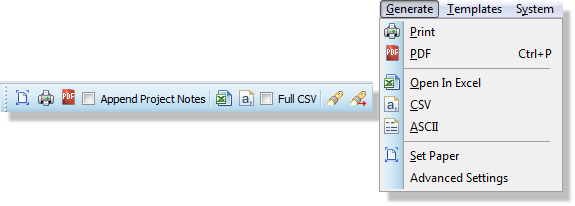
Generation of the Bill of Materials report takes place from the icons at the top or the Generate menu of the BOM module.
BOM Generation Options
There is one presentation output formats (PDF) in which the customising of the live viewer is reflected in the output file and two data formats (Excel & CSV) which contain only the raw information. Changes to fonts and colours, header and footer and addition of company logo are therefore applied only to the presentational format. These are discussed in more detail below.
Output PDF
PDF output is a common presentation format that can be generated directly from the Bill of Materials module.
All images, styles and links are embedded in the PDF document so it is often worth customising your styles prior to generating the final report.
If you have created a Project Notes document of type BOM Notes, you can also append the contents of that document to the PDF, allowing you to include more detailed information or provide additional purchasing guidelines.
The BOM Report view is a physical view based on paper size and orientation. This maps directly onto both the printed output and the PDF output so applying changes such as a switch to landscape mode will be accurately reflected in the resulting output.
Open in Excel
Assuming you have Microsoft Excel installed on your computer you can directly export your Bill of Materials into an Excel spreadsheet for further editing.
You then need to save from the Excel application to store the contents on disk.
Output CSV
The Bill Of Materials report will be a plain ASCII text file in Comma Separated Variable (CSV) format. This is a popular format of data exchange commonly used by spread-sheet programs such as Microsoft™ Excel.
As is common with CSV files, the first line is the name of the fields separated by commas. The remaining lines of the file is raw Bill Of Materials information (quantities, references, values, etc.) separated by commas (Information that contains a comma will be automatically enclosed inside double quotation marks).
The report is termed ‘compact’ because the normal Bill Of Materials operation of grouping like components together is still performed and the CSV output contains one such grouping per line. For example:
Resistors,2,"R3,R15",18k …
Generating a Full CSV Output
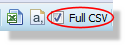
Selecting the checkbox to the right of the CSV output option will generate a more verbose listing. The principle difference is that the normal Bill Of Materials ‘grouping’ of like components is suspended and instead each component in the design is output separately, one component per line.
Resistors,"R3",18k Resistors,"R15",18k
Output ASCII
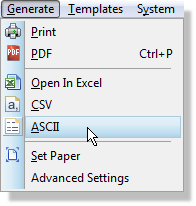
A direct output to ASCII format is available from the Generate menu in the BOM module.
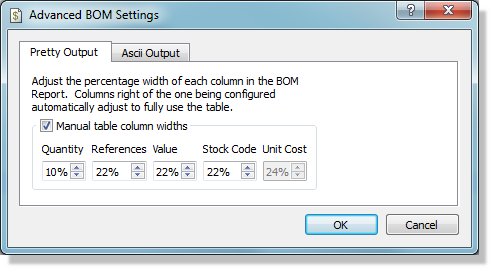
Configuration of column width takes place from the Advanced Settings command on the Generate Menu. This allows you to set a character column width for each field in the report.